Often you want to get information about a user, for example, the type of browser the user is running. You might also want to get information from a user, for example, when the user submits information in forms. The ASP Request built-in object makes getting this information easy.
The Request object gives you access to any information that is passed with an HTTP request. This includes:
POST method.
GET method.
The Request object has five associated collections:
You can use the following general syntax to access the information in the Request object:
Request.CollectionName(variable)
Where CollectionName can be QueryString, Form, Cookies, ServerVariables, or ClientCertificate, and variable is the name of the variable in the collection that you want to access.
You can use the following general syntax to access variables in the Request object without including the collection name:
Request(variablename)
The collections are searched in this order: QueryString, Form, Cookies, ServerVariables, ClientCertificate. The first variable that matches variablename is returned.
Note If an HTML page might have more than one variable with the same name, make sure you include the collection name between Request and the variable name.
For a more detailed description of the Request object and its collections, refer to Object Reference.
An HTML form is the most frequently used medium for getting information from a Web user. A form’s text boxes, option buttons, and check boxes, displayed on an HTML page in a browser, provide the user an easy way of submitting information. When the user clicks the Submit button, the browser sends the collected information to the Web server.
You can use .asp files to collect or process HTML form values in three ways:
The first two methods operate in the same way as forms that interact with other gateway programs, except that, with ASP, you can include commands that read and respond to user choices.
Creating an .asp file that contains a form definition that posts information to itself is a slightly more complicated but very powerful means of working with forms. This process is discussed in Posting Information to the Originating .Asp File.
Although you could use the QUERY_STRING server variable to process QUERY_STRING information from a
user request, ASP provides the QueryString collection to make this information readily accessible. If the form method is POST, the QueryString
collection contains all the information passed as a parameter after the question mark in the URL. If the form method is GET, the QueryString
collection contains all the information passed in the form.
For example, when a user sends the following URL request, the Request.QueryString collection would contain two
values: name and age.
<A HREF="myasp.asp?name=Charles+Parker&age=30">
The following script uses the Request object to access these values.
Welcome, <%= Request.QueryString("name") %>.
Your age is <%= Request.QueryString("age") %>.
In this case, the following text would be sent back to the user:
Welcome, Charles Parker. Your age is 30.
The QueryString collection also automatically handles the case of multiple variables with the same name. When parsing a
query string such as name=Andrew&name=Aaron&name=Eric, for example, ASP creates a new collection called name that in turn contains three values: Andrew, Aaron, and Eric. Each of these values is indexed by an integer, with the following results:
| Reference | Value |
|---|---|
Request.QueryString("name")(1) |
Andrew |
Request.QueryString("name")(2) |
Aaron |
Request.QueryString("name")(3) |
Eric |
A collection created in this manner supports the Count property. The Count property describes how many items a collection contains. In this example, the value of Request.QueryString("name") is 3 , because there are three separate values stored in the name collection.
If you were to use the Response.QueryString method to gain access to the variable name, the output would become a comma-delimited string. In the above example, the value of Request.QueryString("name") would be "Andrew, Aaron, Eric".
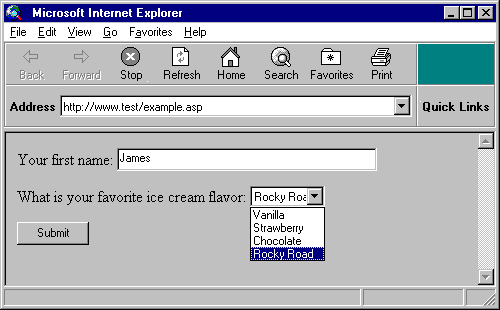
The Form collection contains all the values that a user entered in a form submitted with the POST method. For example, when the user fills in and submits the following form:
<form action="/scripts/submit.asp" method="post">
<p>Your first name: <input name="firstname" size=48>
<p>What is your favorite ice cream flavor: <select name="flavor">
<option>Vanilla <option>Strawberry <option>Chocolate <option>Rocky Road
</select>
<p><input type=submit>
</form>
The following request is sent:
firstname=James&flavor=Rocky+Road
and the following script is returned by a results page (such as submit.asp):
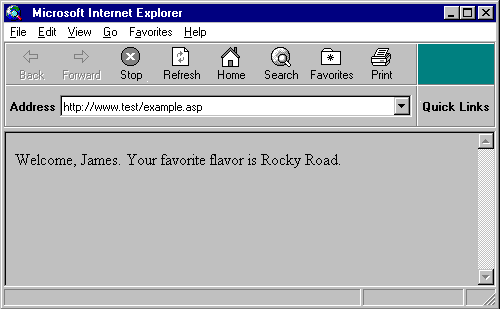
Welcome, <%= Request.Form("firstname") %>.
Your favorite flavor is <%= Request.Form("flavor") %>.
which would result in the following output:
The Form collection treats multiple parameters with the same name in the same way that the QueryString collection does.
The ServerVariables collection provides information from the HTTP headers that are passed along with a user’s request as well as certain Web server environment variables.
You can use this informaton to provide customized responses to users. This script accesses the SERVER_PORT server variable defined by the Common Gateway Interface (CGI)
standard:
This HTTP request was received on
  TCP/IP port <%=  Request("SERVER_PORT") %>.
The following script, which provides content based on the user’s language, accesses the HTTP_ ACCEPT_LANGUAGE
HTTP header variable:
<% language = Request.ServerVariables("HTTP_ACCEPT_LANGUAGE")
If language = "en" Then %>
  <!--#INCLUDE FILE="myapp/Englishpage.asp"-->
<% Else %>
  <!--#INCLUDE FILE="myapp/Otherlang.asp"-->
<% End If %>
With ASP, you have the flexibility to define a form in an .asp file that posts its input values back to itself; that is, a form that posts values back to the .asp file that contains the form. When a user fills in and submits form values, you can use the Request object to read these values. If you receive an invalid value, you can send a message back to the user, pointing out the problem and asking for a different value.
If the page that you send to the user contains only a message, the user must return to the page that contains the form. You can save the user this step by sending your message and defining the form again.
If you post form input messages to the same file that originally defined the form, however, you can send informational messages along with the content of the form; thus, you need only define the form once.
For example, suppose you define a form that allows a user to submit an email address, and you want to verify that the information a user submits is valid according to your criteria. If the value does not contain @, it is
probably incomplete. The following script in GetEmail.asp checks for this. This script is the source of the form, and it includes an error message if appropriate.
<HTML>
<BODY>
<!-- This is GetEmail.asp -->
<%
If IsEmpty(Request("Email")) Then
Msg = "Please enter your email address."
ElseIf InStr(Request("Email"), "@") = 0 Then
Msg = "Please enter an email address" & _
" in the form username@location."
Else
Msg = "This script could process the " & _
"valid Email address now."
End If
%>
<FORM METHOD="POST" ACTION="GetEmail.asp">
<PRE>
Email: <INPUT TYPE="TEXT" NAME="Email" SIZE=30
VALUE="
<%= Request("Email") %>">
<%= Msg %> <P>
<INPUT TYPE="SUBMIT" VALUE="Submit">
</PRE>
</FORM>
</BODY>
</HTML>
A cookie is a token that either a client browser sends to a Web server, or that a Web server sends to a client browser. Cookies allow a set of information to be associated with a user. ASP scripts can both get and set the values of cookies by using the Cookies collection.
This section discusses how to gain access to cookies a browser sends to your Web server. For information about accessing cookies your Web server sends to a browser, see Using the Cookies Collection with the Response Object.
To get the value of a cookie, use the Request.Cookies collection. For example, if the client HTTP request sets
animal=elephant, then the following statement retrieves the value elephant:
<%= Request.Cookies("animal") %>
If an HTTP request sends multiple values for the same cookie, ASP creates an indexed cookie. Each value is assigned a key; you can retrieve a particular cookie key value by using the syntax Request.Cookies("name)("key"). For
example, if a client sends the following HTTP request:
animal=elephant&elephant=African
The following script command returns the value African:
<%= Request.Cookies("animal")("elephant") %>